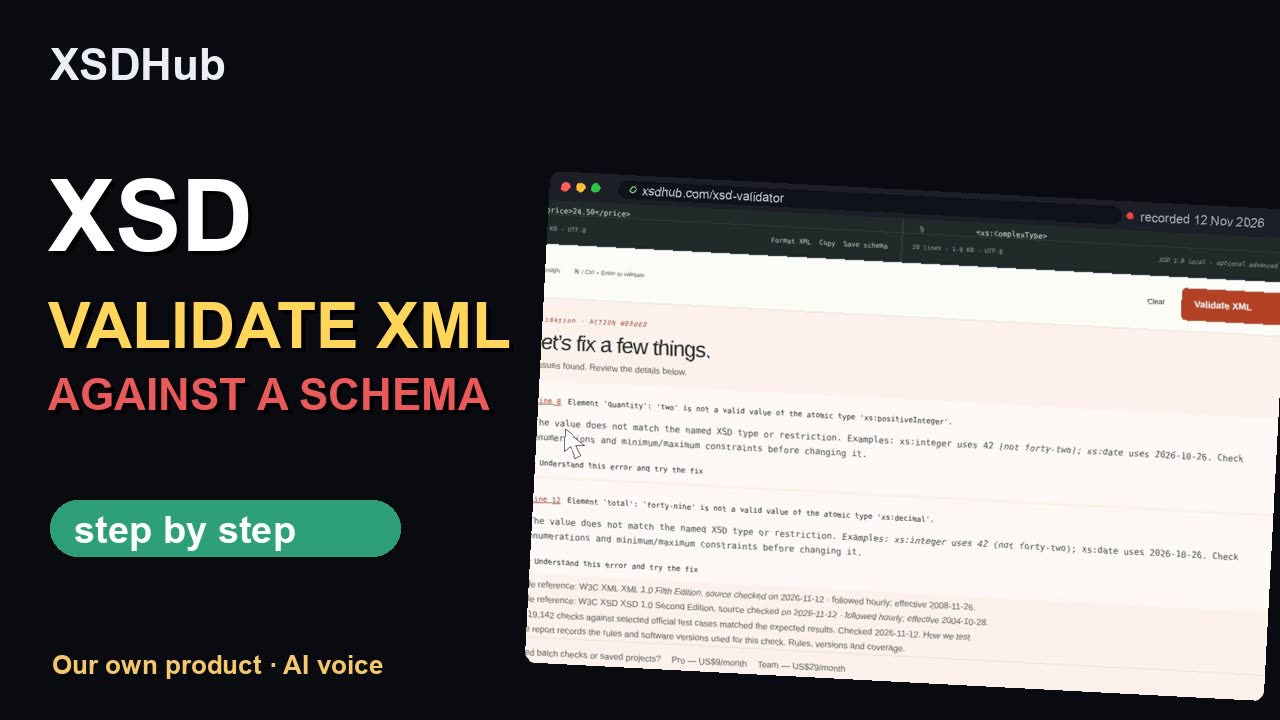
A missing field can stop your file from being imported. Compare the file with its rules. The result shows where they differ.
New to this? Explained in 30 seconds
An XSD file sets the rules for an XML file.
A missing field or wrong order can cause rejection.
This tool checks the file against the selected rules.
Correct the reported fields and check again before sending.
⌘Default checks run in your browser. Server checks require permission. Local validation. Optional saved schema library.How it works
Drop your file here
See what is wrong and where
Fix it and check again
One click loads and checks a fictional example in your browser
Schematron example
One self-written numeric assertion: total equals the sum of items. Good: total 5. Deliberately failing: total 6. Edit your own rules in the existing schema / rule editor.
Loading only replaces the editable source and rules. Each check requires your choice of Validate XML and existing server consent.
Only supplied assertions are checked. No country or package conformity. XPath 1.0 / XSLT 1.0 only; DTDs, external documents and includes are blocked. Missing response context stays unknown.
Keep the original XML export. For an invoice, use the XML from your accounting software, not a scan. Have the recipient’s format instructions ready. For an XSD check, also obtain the matching schema and any files it includes.
Steps
Open the XSD validator and keep XML + XSD selected.
Choose XSD 1.0 unless your supplier specifies XSD 1.1 or Schematron. Those choices are under Advanced engines & multi-file projects on the English page. Read the permission request before continuing.
Paste or open the XML and the XSD schema.
Click Validate XML.
Read the line number and message first, then any rule ID, element and value shown. For XML syntax, the message may have no rule ID. Follow the linked error guide, correct the source and run Validate XML again.
Three errors to check first
cvc-datatype-valid: Use the value format required by the XSD: write 125.50 in a decimal field, without a currency symbol or a comma.
cvc-elt.1.a: Compare the root name and namespace with the schema’s declaration. Obtain the matching schema version from the sender or recipient.
cvc-complex-type.2.4.a: Put required elements in the order defined by the XSD. Check whether an earlier element is missing before changing the highlighted one.
An XML check finds broken document syntax. An XSD check tests the structure and values against the schema you supply. For country invoice rules, use the matching country validator under E-invoicing and keep the recipient’s acceptance response.
These screenshots use fictional invoices. Controls are in English; Russian and Ukrainian editions use their existing translated pages.
Bewahren Sie den ursprünglichen XML-Export auf. Verwenden Sie für eine Rechnung die XML-Datei aus der Buchhaltung, keinen Scan. Halten Sie die Formatvorgaben des Empfängers bereit. Für die XSD-Prüfung benötigen Sie auch das passende Schema und eingebundene Dateien.
Schritte
Öffnen Sie den XSD-Validator und lassen Sie „XML + XSD“ ausgewählt.
Wählen Sie XSD 1.0, sofern der Anbieter nicht XSD 1.1 oder Schematron vorgibt. Diese Auswahl steht auf der englischen Seite unter Advanced engines & multi-file projects. Lesen Sie die Zustimmungsabfrage, bevor Sie fortfahren.
Fügen Sie das XML und das XSD-Schema ein oder öffnen Sie sie.
Klicken Sie auf „Validate XML“.
Lesen Sie zuerst Zeilennummer und Meldung, dann angezeigte Regel-ID, Element und Wert. Bei XML-Syntaxfehlern kann die Regel-ID fehlen. Öffnen Sie die verlinkte Fehlerhilfe, korrigieren Sie die Quelle und klicken Sie erneut auf Validate XML.
Drei Fehler zuerst prüfen
cvc-datatype-valid: Verwenden Sie das XSD-Werteformat: 125.50 für eine Dezimalzahl, ohne Währungszeichen oder Komma.
cvc-elt.1.a: Vergleichen Sie Namen und Namensraum des Wurzelelements mit dem Schema. Fordern Sie die passende Schemaversion beim Absender oder Empfänger an.
cvc-complex-type.2.4.a: Ordnen Sie Pflichtelemente wie im XSD an. Prüfen Sie vor einer Änderung, ob ein früheres Element fehlt.
Die XML-Prüfung findet Syntaxfehler. Die XSD-Prüfung kontrolliert Struktur und Werte anhand Ihres Schemas. Nutzen Sie für länderspezifische Rechnungsregeln den passenden Validator unter E-invoicing und bewahren Sie die Annahmebestätigung des Empfängers auf.
Die Aufnahmen zeigen fiktive Rechnungen und englische Bedienelemente. Die russische und ukrainische Ausgabe zeigt die vorhandene übersetzte Seite.
Conservez le fichier XML original. Pour une facture, utilisez le XML exporté du logiciel comptable, pas une image numérisée. Gardez les consignes du destinataire. Pour le contrôle XSD, obtenez aussi le schéma correspondant et les fichiers qu’il inclut.
Étapes
Ouvrez le validateur XSD et laissez « XML + XSD » sélectionné.
Choisissez XSD 1.0, sauf si votre fournisseur exige XSD 1.1 ou Schematron. Ces choix se trouvent dans Advanced engines & multi-file projects sur la page anglaise. Lisez la demande d’autorisation avant de continuer.
Collez ou ouvrez le XML et le schéma XSD.
Cliquez sur « Validate XML ».
Lisez le numéro de ligne et le message, puis l’identifiant de règle, l’élément et la valeur affichés. Une erreur de syntaxe XML peut ne pas avoir d’identifiant. Suivez le guide lié, corrigez la source et relancez Validate XML.
Trois erreurs à vérifier en premier
cvc-datatype-valid: Respectez le format du XSD : 125.50 pour une valeur décimale, sans symbole monétaire ni virgule.
cvc-elt.1.a: Comparez le nom et l’espace de noms de la racine avec le schéma. Demandez la version correspondante à l’expéditeur ou au destinataire.
cvc-complex-type.2.4.a: Placez les éléments obligatoires dans l’ordre du XSD. Vérifiez si un élément précédent manque avant de modifier celui qui est signalé.
Le contrôle XML repère les erreurs de syntaxe. Le contrôle XSD vérifie la structure et les valeurs selon votre schéma. Pour les règles nationales de facturation, utilisez le validateur du pays dans E-invoicing et conservez la réponse d’acceptation du destinataire.
Les captures montrent des factures fictives et des commandes en anglais. Les éditions russe et ukrainienne montrent les pages traduites existantes.
Zachowaj oryginalny eksport XML. Dla faktury użyj pliku XML z programu księgowego, a nie skanu. Przygotuj wymagania odbiorcy dotyczące formatu. Do sprawdzenia XSD potrzebujesz także właściwego schematu i dołączanych plików.
Kroki
Otwórz walidator XSD i zostaw wybrane „XML + XSD”.
Wybierz XSD 1.0, chyba że dostawca wymaga XSD 1.1 lub Schematron. Te opcje są w Advanced engines & multi-file projects na stronie angielskiej. Przeczytaj prośbę o zgodę przed kontynuowaniem.
Wklej lub otwórz XML i schemat XSD.
Kliknij „Validate XML”.
Przeczytaj numer wiersza i komunikat, a następnie widoczny identyfikator reguły, element i wartość. Błąd składni XML może nie mieć identyfikatora. Otwórz podlinkowany poradnik, popraw źródło i ponownie kliknij Validate XML.
Trzy błędy do sprawdzenia w pierwszej kolejności
cvc-datatype-valid: Użyj formatu wartości z XSD: 125.50 w polu dziesiętnym, bez symbolu waluty i przecinka.
cvc-elt.1.a: Porównaj nazwę i przestrzeń nazw elementu głównego ze schematem. Poproś nadawcę lub odbiorcę o właściwą wersję schematu.
cvc-complex-type.2.4.a: Ułóż wymagane elementy w kolejności z XSD. Przed zmianą wskazanego elementu sprawdź, czy nie brakuje wcześniejszego.
Kontrola XML wykrywa błędy składni. Kontrola XSD sprawdza strukturę i wartości według dostarczonego schematu. Reguły faktur danego kraju sprawdź odpowiednim walidatorem w E-invoicing i zachowaj potwierdzenie przyjęcia od odbiorcy.
Zrzuty pokazują fikcyjne faktury i angielskie przyciski. Wersje rosyjska i ukraińska pokazują istniejące przetłumaczone strony.
Păstrați exportul XML original. Pentru o factură, folosiți XML-ul din programul contabil, nu o scanare. Pregătiți cerințele destinatarului privind formatul. Pentru verificarea XSD aveți nevoie și de schema potrivită și de fișierele incluse.
Pași
Deschideți validatorul XSD și lăsați selectat „XML + XSD”.
Alegeți XSD 1.0 dacă furnizorul nu cere XSD 1.1 sau Schematron. Aceste opțiuni se află în Advanced engines & multi-file projects pe pagina engleză. Citiți cererea de permisiune înainte de a continua.
Lipiți sau deschideți XML-ul și schema XSD.
Faceți clic pe „Validate XML”.
Citiți numărul liniei și mesajul, apoi ID-ul regulii, elementul și valoarea afișate. O eroare de sintaxă XML poate să nu aibă ID. Urmați ghidul asociat, corectați sursa și apăsați din nou Validate XML.
Trei erori de verificat mai întâi
cvc-datatype-valid: Folosiți formatul din XSD: 125.50 într-un câmp zecimal, fără simbol monetar sau virgulă.
cvc-elt.1.a: Comparați numele și spațiul de nume al rădăcinii cu schema. Cereți versiunea potrivită de la expeditor sau destinatar.
cvc-complex-type.2.4.a: Așezați elementele obligatorii în ordinea din XSD. Verificați dacă lipsește un element anterior înainte de a modifica elementul indicat.
Verificarea XML găsește erori de sintaxă. Verificarea XSD controlează structura și valorile conform schemei furnizate. Pentru regulile naționale de facturare, folosiți validatorul țării din E-invoicing și păstrați răspunsul de acceptare al destinatarului.
Capturile arată facturi fictive și comenzi în engleză. Edițiile rusă și ucraineană arată paginile traduse existente.
Sačuvajte izvorni XML izvoz. Za račun upotrijebite XML iz računovodstvenog programa, a ne skeniranu sliku. Pripremite zahtjeve primatelja za format. Za provjeru XSD-a trebate i odgovarajuću shemu te uključene datoteke.
Koraci
Otvorite XSD validator i ostavite odabrano „XML + XSD“.
Odaberite XSD 1.0 osim ako dobavljač traži XSD 1.1 ili Schematron. Te su opcije pod Advanced engines & multi-file projects na engleskoj stranici. Pročitajte zahtjev za dopuštenje prije nastavka.
Zalijepite ili otvorite XML i XSD shemu.
Kliknite „Validate XML“.
Pročitajte broj retka i poruku, zatim prikazanu oznaku pravila, element i vrijednost. Sintaktička pogreška XML-a može biti bez oznake pravila. Otvorite povezani vodič, ispravite izvor i ponovno odaberite Validate XML.
Tri pogreške koje prvo treba provjeriti
cvc-datatype-valid: Upotrijebite format vrijednosti iz XSD-a: 125.50 u decimalnom polju, bez simbola valute ili zareza.
cvc-elt.1.a: Usporedite naziv i prostor imena korijenskog elementa sa shemom. Zatražite odgovarajuću verziju od pošiljatelja ili primatelja.
cvc-complex-type.2.4.a: Obvezne elemente poredajte prema XSD-u. Prije promjene označenog elementa provjerite nedostaje li neki raniji.
Provjera XML-a pronalazi sintaktičke pogreške. Provjera XSD-a ispituje strukturu i vrijednosti prema vašoj shemi. Za pravila računa pojedine države upotrijebite njezin validator u E-invoicing i sačuvajte odgovor primatelja o prihvatu.
Snimke prikazuju izmišljene račune i engleske kontrole. Rusko i ukrajinsko izdanje prikazuju postojeće prevedene stranice.
Сохраните исходный экспорт XML. Для счёта используйте XML из бухгалтерской программы, а не скан. Подготовьте требования получателя к формату. Для проверки XSD нужны также подходящая схема и включённые в неё файлы.
Шаги
Откройте XSD-валидатор и оставьте выбранным «XML + XSD».
Выберите XSD 1.0, если поставщик не требует XSD 1.1 или Schematron. Эти варианты находятся в Advanced engines & multi-file projects на английской странице. Прочитайте запрос разрешения перед продолжением.
Вставьте или откройте XML и схему XSD.
Нажмите «Проверить XML».
Прочитайте номер строки и сообщение, затем показанные код правила, элемент и значение. У синтаксической ошибки XML может не быть кода. Откройте связанное руководство, исправьте исходный файл и снова нажмите «Проверить XML».
Три ошибки для первой проверки
cvc-datatype-valid: Используйте формат XSD: 125.50 в десятичном поле, без знака валюты и запятой.
cvc-elt.1.a: Сравните имя и пространство имён корневого элемента со схемой. Запросите подходящую версию у отправителя или получателя.
cvc-complex-type.2.4.a: Расположите обязательные элементы в порядке XSD. Перед изменением указанного элемента проверьте, не пропущен ли предыдущий.
Проверка XML находит ошибки синтаксиса. Проверка XSD сверяет структуру и значения с вашей схемой. Для правил выставления счетов выберите валидатор страны в E-invoicing и сохраните ответ получателя о приёме.
На снимках показаны вымышленные счета и существующая русская страница.
Збережіть початковий експорт XML. Для рахунка використовуйте XML з бухгалтерської програми, а не скан. Підготуйте вимоги отримувача до формату. Для перевірки XSD потрібні також відповідна схема та включені файли.
Кроки
Відкрийте XSD-валідатор і залиште вибраним «XML + XSD».
Виберіть XSD 1.0, якщо постачальник не вимагає XSD 1.1 або Schematron. Ці варіанти є в Advanced engines & multi-file projects на англійській сторінці. Прочитайте запит дозволу перед продовженням.
Вставте або відкрийте XML і схему XSD.
Натисніть «Перевірити XML».
Прочитайте номер рядка та повідомлення, потім показані код правила, елемент і значення. Синтаксична помилка XML може не мати коду. Відкрийте пов’язаний посібник, виправте початковий файл і знову натисніть «Перевірити XML».
Три помилки для першої перевірки
cvc-datatype-valid: Використовуйте формат XSD: 125.50 у десятковому полі, без знака валюти та коми.
cvc-elt.1.a: Порівняйте ім’я та простір імен кореневого елемента зі схемою. Запитайте відповідну версію у відправника або отримувача.
cvc-complex-type.2.4.a: Розмістіть обов’язкові елементи в порядку XSD. Перш ніж змінювати вказаний елемент, перевірте, чи не пропущено попередній.
Перевірка XML знаходить помилки синтаксису. Перевірка XSD звіряє структуру та значення з вашою схемою. Для правил виставлення рахунків виберіть валідатор країни в E-invoicing і збережіть відповідь отримувача про прийняття.
На знімках показано вигадані рахунки та наявну українську сторінку.
Video walkthrough
How to check XML / XSD · 1:09Recorded on the live site with a fictional sample invoice. Our own product; the voice is made with AI.
More tools
Advanced engines & multi-file projectsUse schemas you are allowed to process. Include their linked files and required notices. Schema permissions and preparation.Generate example XMLFind & replaceLexical repairDetails
Check a document against the structure and data types defined by your XSD. Get specific diagnostics without uploading your XML.
Your data stays yours.
YOUR FILES, YOUR CHOICE
Choose how to check your file.
Start with the standard file rules check. Choose an advanced check if your recipient needs other rules. Advanced checks need permission before sending your document. You can save rules projects on this device or in your Pro or Team workspace. Compare the checks and file limits
GROW WITH YOUR WORKFLOW
One file today. Your whole team tomorrow.
Check one file free. For repeated work, compare plans for several files, saved rules and shared team work.
Free · Pro from US$9
More flow. Less repetition.
Pro from US$9/month. Team from US$29/month. Save two months with annual billing.
An XSD is a file containing rules for other files. It lists required fields, their order and which values are allowed. For example, a quantity may need a number. Writing “two” is readable text but would fail that rule.
How to check your file against its rules
Open your data file in the left editor and its rules file on the right. Keep XML + XSD selected and choose Validate XML. Use the rules version required by the recipient. The included order example shows both a working file and a deliberate mistake.
Full field names and their order matter
Two short field names can look the same but have different full names. Compare the full names in your file and its rules. Check the field order too. A missing-field message may mean the field is absent or that another field appears too early.
Check files automatically while you work
Developers can add automatic file checks to a project. The setup guide explains which checks run on their own systems and which use the API. XSDHub GitHub ActionCopy the CI example
What this beta supports
Keep your workflow moving
How do I check a file against the recipient’s rules?
Open your file and all the rules files supplied by the recipient. Choose Validate XML. The check compares required fields, their order and allowed value types. Follow the example to compare a working file with a deliberate error. Follow the XML and XSD example
Does a passing file prove that all its rules are correct?
The rules file must be readable before the data can be checked. A passing result covers those rules only. It does not prove that they include every requirement from your customer. Compare them with the customer’s instructions and test working and faulty examples.
YOUR NEXT STEP
Your next check
Validate XML syntax in your browser, find malformed tags and read errors with line numbers. Free, no document uploads. UTF-8 XML files up to 10 MB.
Check identifiers, code lists and document totals locally. Each result names its rule and source.
The local check sends no document or identifier to a register.
Certificate checks use authenticated EU trust list 398, including France 184 and Italy 225. Ask your signature provider to verify the signed document, revocation and qualified status before relying on the signature. Certificate check details.
IdentifierCode listCheck document fieldsOptional official register lookupOffline certificate chain on this server
The report includes source paths, amounts and certificate fingerprints. Review it before sharing.
Missing, empty or repeated fields
What happens when the rules do not state how often a field may appear?
When neither limit is stated, the field must appear exactly once. The rules can also allow a missing field or repeated fields. An empty field still counts as present. Its value must meet the field’s own requirements.
See validation errors with line numbers where available. Correct your data, check again, and export a JSON result for your records.
Check your XML against an XSD 1.0 schema, or choose XSD 1.1 or Schematron for other rules. Give permission before sending a document for an advanced check. Save schema projects on this device or in your Pro or Team workspace. Compare the checks and file limits.
XML Schema Definition, or XSD, describes the structure a class of XML documents is expected to follow. A schema can require an attribute, restrict an element to a number, define the order of children and limit how many times an item appears. Well-formed XML can still fail its schema: <quantity>two</quantity> is valid XML syntax but fails when quantity is defined as xs:positiveInteger.
Open or paste your XML in the left editor and your XSD in the right editor. Keep XML + XSD selected, then run Validate XML. Use the exact schema version required by the system receiving the document. Start with the included order example; the invalid example deliberately puts text in numeric fields so you can see the resulting diagnostics.
An element called order in a namespace is different from an order element with no namespace. Compare the XML namespace with the schema targetNamespace before renaming elements. For xs:sequence, child elements must also appear in the declared order. Missing child element errors can therefore point to either an absent field or an unexpected field appearing too early.
Open your XML and the complete XSD supplied by your recipient, then choose Validate XML. The result checks required fields, element order and data types against that schema. Follow the XML and XSD example to try a passing document and a deliberate error.
The schema must load successfully before a document can be checked. A passing document shows that it meets that schema; it does not prove that the schema describes every business requirement. Compare the schema with the recipient’s specification and test both accepted and rejected examples.
Both attributes default to 1 when omitted from an element declaration inside a content model. Set minOccurs="0" to allow absence or maxOccurs="unbounded" to allow repetition without a fixed upper count. An empty element still counts as one occurrence and must satisfy its value type.
THE SHORT VERSION
A little structure. A lot less debugging.
01
Bring your XML
Paste a document or open a UTF-8 file. Start with the included examples to see what valid and invalid data look like.
02
Add the file rules
An XSD is the rules file your recipient expects. It sets required fields, their order and the kind of values allowed. For broken labels only, choose XML syntax only.
03
Follow the feedback
Read the error and its line number when available. Correct the data and check again. Download the result for your records.
What this checks
Checks XML syntax and your complete XSD: required fields, element order and data types.
Choose advanced checks when your schema needs XSD 1.1 or additional business rules.
What this does not check
Rules outside your schema: add the recipient’s complete XSD or your business rules in the XML workbench, then rerun the check.