E-invoice validator for EN 16931 and XRechnung
Germany’s federal portal rejected your invoice? Correct it and send it again. Federal invoices need the buyer reference called (a routing reference for German authorities). Check this reference before sending.
New to this? Explained in 30 seconds
An electronic invoice is a file that accounting software can read directly.
Missing invoice data can delay processing and payment.
This tool checks the file against the selected rules.
Correct the reported fields and check again before sending.
- Drop your file here
- See what is wrong and where
- Fix it and check again
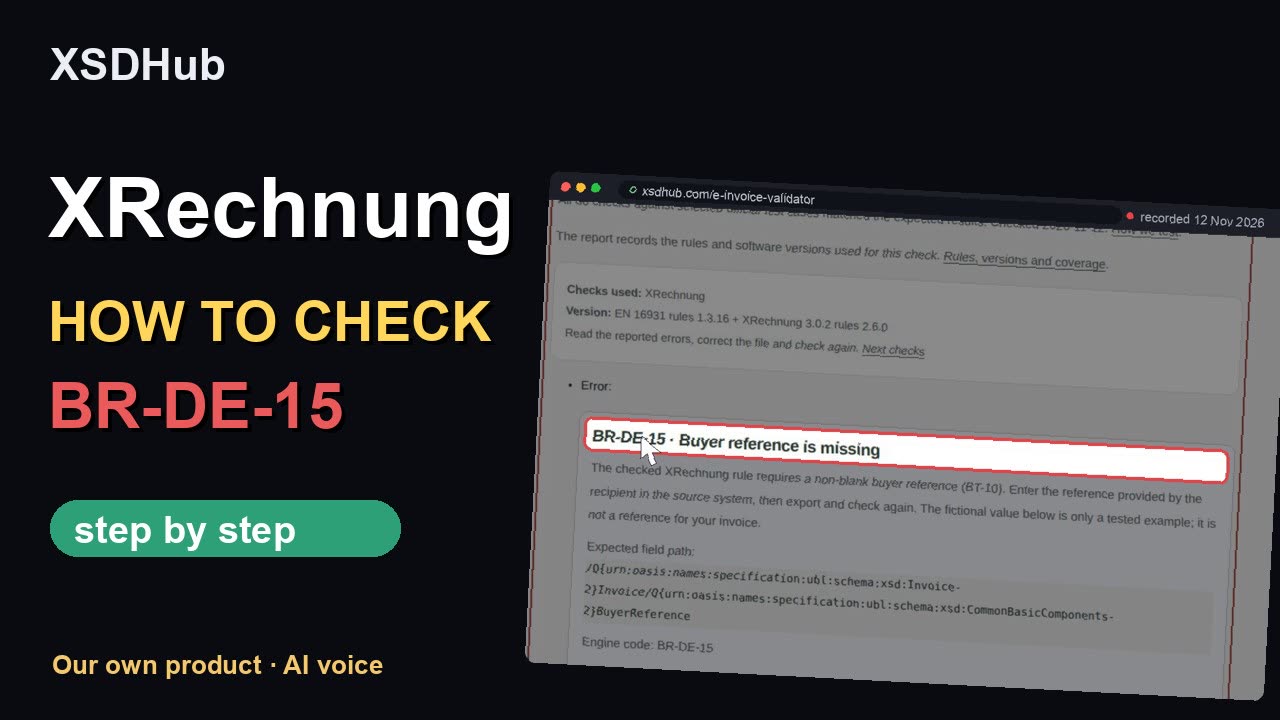
How to fill in · XRechnung
Before you start
Have the XML export from your invoicing software and the buyer’s instructions ready. Use UBL or CII. A PDF printout cannot replace the XML; export the electronic invoice from your software.
Steps
- Open the e-invoice validator and choose the package XRechnung.
- Choose your XRechnung file (UBL or CII), or paste the XML.
- Tick the consent box, then click Check invoice.
- Read the result card: rule, field, XML path, and a failing and a passing example.
- Fix the field in your software, export and check again.
Three errors to check first
- BR-DE-15: Buyer reference missing. Ask the buyer for the routing reference and put it in BuyerReference.
- BR-DE-2: Seller contact missing. Add the invoicing contact to the seller record and export again.
- BR-DE-21: Wrong specification ID. Choose the XRechnung export in your software, then check the new file.
A passed check means the selected rules passed. Confirm the buyer’s delivery requirements before sending the invoice.
The language of these instructions can differ from the controls shown. Keep the rule ID when asking a colleague for help.
Vorbereitung
Halten Sie den XML-Export aus Ihrer Rechnungssoftware und die Vorgaben des Käufers bereit. Verwenden Sie UBL oder CII. Ein PDF-Ausdruck ersetzt das XML nicht; exportieren Sie die elektronische Rechnung aus Ihrer Software.
Schritte
- Öffnen Sie den E-Rechnungs-Validator und wählen Sie das Paket XRechnung.
- Wählen Sie Ihre XRechnung-Datei (UBL oder CII) oder fügen Sie das XML ein.
- Setzen Sie das Häkchen im Einwilligungsfeld und klicken Sie dann auf „Rechnung prüfen“.
- Lesen Sie die Ergebniskarte: Regel, Feld, XML-Pfad sowie ein fehlerhaftes und ein korrektes Beispiel.
- Korrigieren Sie das Feld in Ihrer Software, exportieren Sie neu und prüfen Sie erneut.
Drei Fehler zuerst prüfen
- BR-DE-15: Käuferreferenz fehlt. Fragen Sie den Käufer nach der Routingreferenz und tragen Sie diese in BuyerReference ein.
- BR-DE-2: Verkäuferkontakt fehlt. Ergänzen Sie den Rechnungskontakt im Verkäuferdatensatz und exportieren Sie erneut.
- BR-DE-21: Falsche Spezifikationskennung. Wählen Sie den XRechnung-Export in Ihrer Software und prüfen Sie die neue Datei.
Eine bestandene Prüfung bestätigt die ausgewählten Regeln. Klären Sie vor dem Versand die Übermittlungsvorgaben des Käufers.
Die Sprache dieser Anleitung kann von den Bedienelementen abweichen. Geben Sie bei Rückfragen die Regel-ID an.
Avant de commencer
Préparez l’export XML de votre logiciel de facturation et les consignes de l’acheteur. Utilisez UBL ou CII. Un PDF ne remplace pas le XML ; exportez la facture électronique depuis votre logiciel.
Étapes
- Ouvrez le validateur de factures électroniques et choisissez le paquet XRechnung.
- Choisissez votre fichier XRechnung (UBL ou CII), ou collez le XML.
- Cochez la case de consentement, puis cliquez sur « Check invoice ».
- Lisez la fiche de résultat : règle, champ, chemin XML, ainsi qu'un exemple en échec et un exemple valide.
- Corrigez le champ dans votre logiciel, exportez et vérifiez à nouveau.
Trois erreurs à vérifier en premier
- BR-DE-15: Référence acheteur absente. Demandez la référence d’acheminement à l’acheteur et renseignez BuyerReference.
- BR-DE-2: Contact vendeur absent. Ajoutez le contact de facturation dans la fiche vendeur, puis exportez à nouveau.
- BR-DE-21: Identifiant de spécification incorrect. Choisissez l’export XRechnung dans votre logiciel, puis vérifiez le nouveau fichier.
Une vérification réussie confirme les règles sélectionnées. Vérifiez les exigences de transmission de l’acheteur avant l’envoi.
La langue de ce guide peut différer des commandes affichées. Conservez l’identifiant de règle pour demander de l’aide à un collègue.
Przed rozpoczęciem
Przygotuj eksport XML z programu do fakturowania i instrukcje nabywcy. Użyj UBL lub CII. Wydruk PDF nie zastępuje XML; wyeksportuj fakturę elektroniczną ze swojego programu.
Kroki
- Otwórz walidator e-faktur i wybierz pakiet XRechnung.
- Wybierz plik XRechnung (UBL lub CII) albo wklej XML.
- Zaznacz pole zgody, a następnie kliknij „Check invoice”.
- Przeczytaj kartę wyniku: reguła, pole, ścieżka XML oraz przykład błędny i poprawny.
- Popraw pole w swoim programie, wyeksportuj plik i sprawdź ponownie.
Trzy błędy do sprawdzenia w pierwszej kolejności
- BR-DE-15: Brak referencji nabywcy. Poproś nabywcę o referencję routingu i wpisz ją w BuyerReference.
- BR-DE-2: Brak kontaktu sprzedawcy. Dodaj kontakt do spraw faktur w danych sprzedawcy i wyeksportuj ponownie.
- BR-DE-21: Błędny identyfikator specyfikacji. Wybierz eksport XRechnung w programie i sprawdź nowy plik.
Pozytywny wynik potwierdza wybrane reguły. Przed wysłaniem uzgodnij wymagania odbioru faktury z nabywcą.
Język instrukcji może różnić się od języka przycisków. Zachowaj identyfikator reguły, gdy prosisz współpracownika o pomoc.
Înainte de a începe
Pregătiți exportul XML din programul de facturare și instrucțiunile cumpărătorului. Folosiți UBL sau CII. Un PDF nu înlocuiește XML-ul; exportați factura electronică din program.
Pași
- Deschideți validatorul de facturi electronice și alegeți pachetul XRechnung.
- Alegeți fișierul XRechnung (UBL sau CII) sau lipiți XML-ul.
- Bifați caseta de acord, apoi faceți clic pe „Check invoice”.
- Citiți cardul de rezultat: regula, câmpul, calea XML, un exemplu greșit și unul corect.
- Corectați câmpul în programul dvs., exportați și verificați din nou.
Trei erori de verificat mai întâi
- BR-DE-15: Lipsește referința cumpărătorului. Cereți referința de rutare cumpărătorului și completați BuyerReference.
- BR-DE-2: Lipsește contactul vânzătorului. Adăugați contactul pentru facturi în datele vânzătorului și exportați din nou.
- BR-DE-21: Identificator de specificație greșit. Alegeți exportul XRechnung în program și verificați noul fișier.
O verificare reușită confirmă regulile selectate. Confirmați cerințele de transmitere ale cumpărătorului înainte de trimitere.
Limba ghidului poate diferi de cea a comenzilor. Păstrați ID-ul regulii când cereți ajutor unui coleg.
Prije početka
Pripremite XML izvoz iz programa za račune i upute kupca. Koristite UBL ili CII. PDF ispis ne zamjenjuje XML; izvezite elektronički račun iz programa.
Koraci
- Otvorite validator e-računa i odaberite paket XRechnung.
- Odaberite datoteku XRechnung (UBL ili CII) ili zalijepite XML.
- Označite potvrdni okvir za privolu, zatim kliknite „Check invoice“.
- Pročitajte karticu rezultata: pravilo, polje, XML putanja te neispravan i ispravan primjer.
- Ispravite polje u svom programu, izvezite i provjerite ponovno.
Tri pogreške koje prvo treba provjeriti
- BR-DE-15: Nedostaje referenca kupca. Zatražite referencu za usmjeravanje od kupca i unesite je u BuyerReference.
- BR-DE-2: Nedostaje kontakt prodavatelja. Dodajte kontakt za račune u podatke prodavatelja i ponovno izvezite.
- BR-DE-21: Pogrešan identifikator specifikacije. Odaberite izvoz XRechnung u programu i provjerite novu datoteku.
Uspješna provjera potvrđuje odabrana pravila. Prije slanja potvrdite zahtjeve kupca za dostavu računa.
Jezik uputa može se razlikovati od jezika kontrola. Sačuvajte ID pravila kad tražite pomoć kolege.
Перед началом
Подготовьте XML из вашей программы для счетов и инструкции покупателя. Используйте UBL или CII. PDF не заменяет XML; выгрузите электронный счёт из программы.
Шаги
- Откройте валидатор электронных счетов и выберите пакет XRechnung.
- Выберите файл XRechnung (UBL или CII) или вставьте XML.
- Поставьте галочку в поле согласия, затем нажмите «Check invoice».
- Прочитайте карточку результата: правило, поле, путь в XML, а также неверный и верный пример.
- Исправьте поле в своей программе, выгрузите файл и проверьте снова.
Три ошибки для первой проверки
- BR-DE-15: Нет ссылки покупателя. Запросите у покупателя ссылку для маршрутизации и укажите её в BuyerReference.
- BR-DE-2: Нет контакта продавца. Добавьте контакт по счетам в данные продавца и выгрузите файл снова.
- BR-DE-21: Неверный идентификатор спецификации. Выберите экспорт XRechnung в программе и проверьте новый файл.
Успешная проверка подтверждает выбранные правила. Перед отправкой уточните требования покупателя к передаче счёта.
Язык инструкции может отличаться от языка элементов управления. Сохраните код правила, чтобы обратиться за помощью к коллеге.
Перед початком
Підготуйте XML із вашої програми для рахунків та інструкції покупця. Використовуйте UBL або CII. PDF не замінює XML; експортуйте електронний рахунок із програми.
Кроки
- Відкрийте валідатор електронних рахунків і виберіть пакет XRechnung.
- Виберіть файл XRechnung (UBL або CII) або вставте XML.
- Позначте прапорець згоди, потім натисніть «Check invoice».
- Прочитайте картку результату: правило, поле, шлях у XML, а також неправильний і правильний приклад.
- Виправте поле у своїй програмі, експортуйте файл і перевірте знову.
Три помилки для першої перевірки
- BR-DE-15: Немає посилання покупця. Запитайте в покупця посилання для маршрутизації та вкажіть його в BuyerReference.
- BR-DE-2: Немає контакту продавця. Додайте контакт щодо рахунків до даних продавця й експортуйте файл знову.
- BR-DE-21: Хибний ідентифікатор специфікації. Виберіть експорт XRechnung у програмі та перевірте новий файл.
Успішна перевірка підтверджує вибрані правила. Перед надсиланням уточніть вимоги покупця до передавання рахунку.
Мова інструкції може відрізнятися від мови елементів керування. Збережіть код правила, щоб звернутися по допомогу до колеги.
Video walkthrough
How to fill in · EN 16931
Before you start
Have the XML export from your invoicing software and the buyer’s instructions ready. Use UBL or CII. A PDF printout cannot replace the XML; export the electronic invoice from your software.
Steps
- Open the e-invoice validator and choose the package EN 16931.
- Optional: pick the rule version by date.
- Choose your UBL or CII file, or paste the XML. Loading does not upload anything.
- Tick the consent box, then click Check invoice.
- Read each failed rule: the rule ID, what it requires, and the XML path showing the place in the file.
- Note the rule version the report names, fix the field in your software, export and check again.
Three errors to check first
- BR-CO-10: Line total differs. Add the net amounts of the invoice lines and correct the line subtotal before VAT.
- BR-CL-18: Invalid VAT category. Map your software’s tax code to the category required for this invoice, such as S or Z. Do not put a percentage in this field.
- BR-06: Seller name missing. Put the seller’s legal name in PartyLegalEntity/RegistrationName.
A passed check means the selected rules passed. Confirm the buyer’s delivery requirements before sending the invoice.
The language of these instructions can differ from the controls shown. Keep the rule ID when asking a colleague for help.
Vorbereitung
Halten Sie den XML-Export aus Ihrer Rechnungssoftware und die Vorgaben des Käufers bereit. Verwenden Sie UBL oder CII. Ein PDF-Ausdruck ersetzt das XML nicht; exportieren Sie die elektronische Rechnung aus Ihrer Software.
Schritte
- Öffnen Sie den E-Rechnungs-Validator und wählen Sie das Paket EN 16931.
- Optional: Regelversion nach Datum wählen.
- Wählen Sie Ihre UBL- oder CII-Datei oder fügen Sie das XML ein. Die Datei wird erst nach Ihrer Zustimmung zur Prüfung gesendet.
- Setzen Sie das Häkchen im Einwilligungsfeld und klicken Sie dann auf „Rechnung prüfen“.
- Lesen Sie jede verletzte Regel: die Regel-ID, was sie verlangt und den XML-Pfad zur Stelle in der Datei.
- Notieren Sie die im Bericht genannte Regelversion, korrigieren Sie das Feld in Ihrer Software, exportieren Sie neu und prüfen Sie erneut.
Drei Fehler zuerst prüfen
- BR-CO-10: Zeilensumme weicht ab. Addieren Sie die Nettobeträge der Rechnungszeilen und korrigieren Sie die Zeilensumme vor Umsatzsteuer.
- BR-CL-18: Ungültige Umsatzsteuerkategorie. Ordnen Sie den Steuerschlüssel Ihrer Software der benötigten Kategorie zu, etwa S oder Z. Tragen Sie hier keinen Prozentsatz ein.
- BR-06: Verkäufername fehlt. Tragen Sie den rechtlichen Namen des Verkäufers in PartyLegalEntity/RegistrationName ein.
Eine bestandene Prüfung bestätigt die ausgewählten Regeln. Klären Sie vor dem Versand die Übermittlungsvorgaben des Käufers.
Die Sprache dieser Anleitung kann von den Bedienelementen abweichen. Geben Sie bei Rückfragen die Regel-ID an.
Avant de commencer
Préparez l’export XML de votre logiciel de facturation et les consignes de l’acheteur. Utilisez UBL ou CII. Un PDF ne remplace pas le XML ; exportez la facture électronique depuis votre logiciel.
Étapes
- Ouvrez le validateur de factures électroniques et choisissez le paquet EN 16931.
- Facultatif : choisissez la version des règles par date.
- Choisissez votre fichier UBL ou CII, ou collez le XML. Le chargement n'envoie rien.
- Cochez la case de consentement, puis cliquez sur « Check invoice ».
- Lisez chaque règle enfreinte : son identifiant, ce qu’elle exige et le chemin XML qui indique l’emplacement dans le fichier.
- Notez la version des règles indiquée par le rapport, corrigez le champ dans votre logiciel, exportez et vérifiez à nouveau.
Trois erreurs à vérifier en premier
- BR-CO-10: Total des lignes incorrect. Additionnez les montants nets des lignes et corrigez le sous-total avant TVA.
- BR-CL-18: Catégorie de TVA incorrecte. Associez le code fiscal de votre logiciel à la catégorie requise, comme S ou Z. Ne mettez pas de pourcentage dans ce champ.
- BR-06: Nom du vendeur absent. Renseignez le nom légal du vendeur dans PartyLegalEntity/RegistrationName.
Une vérification réussie confirme les règles sélectionnées. Vérifiez les exigences de transmission de l’acheteur avant l’envoi.
La langue de ce guide peut différer des commandes affichées. Conservez l’identifiant de règle pour demander de l’aide à un collègue.
Przed rozpoczęciem
Przygotuj eksport XML z programu do fakturowania i instrukcje nabywcy. Użyj UBL lub CII. Wydruk PDF nie zastępuje XML; wyeksportuj fakturę elektroniczną ze swojego programu.
Kroki
- Otwórz walidator e-faktur i wybierz pakiet EN 16931.
- Opcjonalnie: wybierz wersję reguł według daty.
- Wybierz plik UBL lub CII albo wklej XML. Wczytanie niczego nie wysyła.
- Zaznacz pole zgody, a następnie kliknij „Check invoice”.
- Przeczytaj każdą naruszoną regułę: jej identyfikator, wymaganie i ścieżkę XML wskazującą miejsce w pliku.
- Zanotuj wersję reguł podaną w raporcie, popraw pole w swoim programie, wyeksportuj plik i sprawdź ponownie.
Trzy błędy do sprawdzenia w pierwszej kolejności
- BR-CO-10: Błędna suma wierszy. Zsumuj kwoty netto pozycji i popraw sumę przed VAT.
- BR-CL-18: Błędna kategoria VAT. Przypisz kod podatku z programu do wymaganej kategorii, np. S lub Z. Nie wpisuj tu wartości procentowej.
- BR-06: Brak nazwy sprzedawcy. Wpisz nazwę prawną sprzedawcy w PartyLegalEntity/RegistrationName.
Pozytywny wynik potwierdza wybrane reguły. Przed wysłaniem uzgodnij wymagania odbioru faktury z nabywcą.
Język instrukcji może różnić się od języka przycisków. Zachowaj identyfikator reguły, gdy prosisz współpracownika o pomoc.
Înainte de a începe
Pregătiți exportul XML din programul de facturare și instrucțiunile cumpărătorului. Folosiți UBL sau CII. Un PDF nu înlocuiește XML-ul; exportați factura electronică din program.
Pași
- Deschideți validatorul de facturi electronice și alegeți pachetul EN 16931.
- Opțional: alegeți versiunea regulilor după dată.
- Alegeți fișierul UBL sau CII sau lipiți XML-ul. Încărcarea nu trimite nimic.
- Bifați caseta de acord, apoi faceți clic pe „Check invoice”.
- Citiți fiecare regulă încălcată: ID-ul regulii, ce cere și calea XML care indică locul în fișier.
- Notați versiunea regulilor indicată de raport, corectați câmpul în programul dvs., exportați și verificați din nou.
Trei erori de verificat mai întâi
- BR-CO-10: Totalul liniilor diferă. Adunați sumele nete ale liniilor și corectați subtotalul înainte de TVA.
- BR-CL-18: Categorie TVA nevalidă. Asociați codul fiscal din program cu categoria necesară, precum S sau Z. Nu introduceți un procent în acest câmp.
- BR-06: Lipsește numele vânzătorului. Introduceți denumirea legală a vânzătorului în PartyLegalEntity/RegistrationName.
O verificare reușită confirmă regulile selectate. Confirmați cerințele de transmitere ale cumpărătorului înainte de trimitere.
Limba ghidului poate diferi de cea a comenzilor. Păstrați ID-ul regulii când cereți ajutor unui coleg.
Prije početka
Pripremite XML izvoz iz programa za račune i upute kupca. Koristite UBL ili CII. PDF ispis ne zamjenjuje XML; izvezite elektronički račun iz programa.
Koraci
- Otvorite validator e-računa i odaberite paket EN 16931.
- Neobavezno: odaberite verziju pravila prema datumu.
- Odaberite datoteku UBL ili CII ili zalijepite XML. Učitavanje ništa ne šalje.
- Označite potvrdni okvir za privolu, zatim kliknite „Check invoice“.
- Pročitajte svako prekršeno pravilo: ID pravila, što zahtijeva i XML putanju koja pokazuje mjesto u datoteci.
- Zabilježite verziju pravila koju navodi izvješće, ispravite polje u svom programu, izvezite i provjerite ponovno.
Tri pogreške koje prvo treba provjeriti
- BR-CO-10: Zbroj stavki nije točan. Zbrojite neto iznose stavki i ispravite podzbroj prije PDV-a.
- BR-CL-18: Nevažeća kategorija PDV-a. Povežite poreznu šifru iz programa s potrebnom kategorijom, poput S ili Z. Ne unosite postotak u ovo polje.
- BR-06: Nedostaje naziv prodavatelja. Unesite pravni naziv prodavatelja u PartyLegalEntity/RegistrationName.
Uspješna provjera potvrđuje odabrana pravila. Prije slanja potvrdite zahtjeve kupca za dostavu računa.
Jezik uputa može se razlikovati od jezika kontrola. Sačuvajte ID pravila kad tražite pomoć kolege.
Перед началом
Подготовьте XML из вашей программы для счетов и инструкции покупателя. Используйте UBL или CII. PDF не заменяет XML; выгрузите электронный счёт из программы.
Шаги
- Откройте валидатор электронных счетов и выберите пакет EN 16931.
- По желанию: выберите версию правил по дате.
- Выберите файл UBL или CII или вставьте XML. Загрузка ничего не отправляет.
- Поставьте галочку в поле согласия, затем нажмите «Check invoice».
- Прочитайте каждое нарушенное правило: его код, требование и путь в XML к месту в файле.
- Запишите версию правил из отчёта, исправьте поле в своей программе, выгрузите файл и проверьте снова.
Три ошибки для первой проверки
- BR-CO-10: Не сходится сумма строк. Сложите суммы строк без НДС и исправьте промежуточный итог до НДС.
- BR-CL-18: Неверная категория НДС. Сопоставьте код налога в программе с нужной категорией, например S или Z. Не указывайте процент в этом поле.
- BR-06: Нет имени продавца. Укажите юридическое наименование продавца в PartyLegalEntity/RegistrationName.
Успешная проверка подтверждает выбранные правила. Перед отправкой уточните требования покупателя к передаче счёта.
Язык инструкции может отличаться от языка элементов управления. Сохраните код правила, чтобы обратиться за помощью к коллеге.
Перед початком
Підготуйте XML із вашої програми для рахунків та інструкції покупця. Використовуйте UBL або CII. PDF не замінює XML; експортуйте електронний рахунок із програми.
Кроки
- Відкрийте валідатор електронних рахунків і виберіть пакет EN 16931.
- За бажанням: виберіть версію правил за датою.
- Виберіть файл UBL або CII або вставте XML. Завантаження нічого не надсилає.
- Позначте прапорець згоди, потім натисніть «Check invoice».
- Прочитайте кожне порушене правило: його код, вимогу та шлях у XML до місця у файлі.
- Запишіть версію правил зі звіту, виправте поле у своїй програмі, експортуйте файл і перевірте знову.
Три помилки для першої перевірки
- BR-CO-10: Не збігається сума рядків. Додайте суми рядків без ПДВ і виправте проміжний підсумок до ПДВ.
- BR-CL-18: Хибна категорія ПДВ. Зіставте код податку в програмі з потрібною категорією, наприклад S або Z. Не вказуйте відсоток у цьому полі.
- BR-06: Немає назви продавця. Укажіть юридичну назву продавця в PartyLegalEntity/RegistrationName.
Успішна перевірка підтверджує вибрані правила. Перед надсиланням уточніть вимоги покупця до передавання рахунку.
Мова інструкції може відрізнятися від мови елементів керування. Збережіть код правила, щоб звернутися по допомогу до колеги.
Video walkthrough
“I did run into this and only found out after the damage was done. Would have been great to have this earlier.”
Rules, scope and source
The result checks invoice structure, fields and totals against EN 16931 version 1.3.16, plus XRechnung 3.0.2 national rules 2.6.0 when chosen. Each report names the version used. For final acceptance, send the corrected invoice through your recipient’s required channel and keep their response.
For Peppol delivery, ask your Peppol provider to check its rules and confirm delivery. We check official rule releases hourly; see the rule sources and checking details.
You can check an invoice up to 10 MB. If a check reaches a time or report limit, correct the reported errors and check the file again. For a larger invoice, contact support to arrange a check.
Recurring invoice checks
Pro US$9/month supports 25 files per batch; Team US$29/month supports 100. Existing plan limits apply; no separate invoice pricing. Batches run sequentially and can take several minutes. Compare plans.
EN 16931 guide · XRechnung guide · API, CLI and Actions documentation
UBL, CII and the profile your recipient expects
UBL 2.1 and UN/CEFACT CII D16B are different XML vocabularies for the European invoice model. UBL uses Invoice or CreditNote roots and separate aggregate/basic namespaces. CII uses CrossIndustryInvoice with trade agreement, delivery and settlement structures. A field has different element paths in the two syntaxes; translate business terms rather than renaming tags.
Select EN 16931 for the fixed European semantic checks. Select XRechnung when the recipient asks for that German profile: it adds national constraints, including electronic addresses and buyer-reference requirements. A Leitweg-ID can be the buyer reference required for a German public recipient; confirm the actual recipient identifier instead of inventing one. Neither mode sends the invoice to a portal.
Mandate dates and country scope
Snapshot checked on 2 November 2026. These dates describe selected scopes and transitions; the format accepted by a particular recipient still matters.
- EU public procurement: central receiving obligations from 18 April 2019, with a possible subcentral extension to 18 April 2020. EN 16931 itself is not a universal B2B mandate. Directive 2014/55/EU.
- Germany: federal B2G supplier obligations from 27 November 2020, subject to exceptions. Domestic B2B receipt from 1 January 2025; issuance transitions through 2027/2028 depend on turnover and exceptions. XRechnung is not the exclusive B2B format. Federal FAQ · BMF guidance.
- France: receipt for all businesses and issuance for large and intermediate businesses from 1 September 2026; issuance for small businesses and microbusinesses from 1 September 2027. Official timetable.
- Poland: KSeF issuance from 1 February 2026 for businesses above PLN 200 million 2024 sales; from 1 April 2026 for others, with a small monthly-sales transition through 2026 and exclusions. KSeF receipt from 1 February 2026. KSeF is a separate system and is not validated here. Official KSeF scope.
Ten common error messages
These examples show invoice errors that can appear together. Open a rule to find the affected field and try a correction.
- BR-S-08: Standard VAT taxable base must match the lines (281 mutation reports)
- PEPPOL-EN16931-R008: Empty XML elements are forbidden (111 mutation reports)
- BR-CO-10: Line net total must equal the sum of lines (108 mutation reports)
- BR-CO-04: Each line needs a VAT category code (77 mutation reports)
- BR-25: Each invoice line needs an item name (72 mutation reports)
- BR-21: Each invoice line needs an identifier (51 mutation reports)
- BR-27: Item net price cannot be negative (51 mutation reports)
- BR-S-05: Standard-rated lines need a positive VAT rate (39 mutation reports)
- BR-CO-15: Gross total must equal net total plus VAT (34 mutation reports)
- BR-22: Each invoice line needs a quantity (24 mutation reports)
From one invoice to a repeatable batch
First repair one invoice and keep its passing output as a regression example. Then sign in with Pro for up to 25 XML files per batch, or Team for up to 100. Select files in the invoice validator, choose the same fixed package and consent to server processing for each selected invoice. Checks run sequentially with a visible per-file result; a passing first file does not establish that the whole batch passes. Compare plans and limits · Run a batch.
Your next check
Check UBL and CII invoice XML against fixed official EN 16931 and XRechnung rules after explicit server-processing consent.
Open E-invoice validatorInvoice triage
Review a mixed invoice batch in this tab. Pro: 25 files; Team: 100. Existing account and Team workspace daily quotas apply. Team workspace sharing stays the same; this is not a separate client space.
Open Invoice triage · Pro / Team
The report lists the checks that passed. Open Additional checks for supported identifiers and signature checks. Check the PDF separately when required and keep the recipient’s response to confirm acceptance. See the remaining checks and how to run them.
Files and results stay in this tab's memory. No automatic download, saved session or extra server storage.
Consent applies to each supported file in the displayed batch. Changing files or a package clears consent. Duplicate bytes with the same package reuse their session result.
Next: Invoice viewer for a local readable view.
Additional checks
Check identifiers, code lists and document totals locally. Each result names its rule and source.
The local check sends no document or identifier to a register.
Certificate checks use authenticated EU trust list 398, including France 184 and Italy 225. Ask your signature provider to verify the signed document, revocation and qualified status before relying on the signature. Certificate check details.
Identifier
Code list
Check document fields
Optional official register lookup
Offline certificate chain on this server
The report includes source paths, amounts and certificate fingerprints. Review it before sharing.
What this checks
Invoice check by email
An invoice in your inbox should not mean another round of manual checks. Forward its XML to check@xsdhub.com. The reply shows the rule code, affected field and rule version, so you can correct the invoice in your software.
For a PDF or (an invoice with PDF and XML) invoice, export its XML from your invoicing software and send that file. You can also check the PDF in the Factur-X validator.
Read this explanation in another language
Germany’s federal portal rejected your invoice? Correct it and send it again. Federal invoices need the buyer reference called Leitweg-ID. Check this reference before sending.
Das Rechnungsportal des Bundes verlangt, abgelehnte Rechnungen zu korrigieren und erneut einzureichen. Für Rechnungen an den Bund ist die Leitweg-ID Pflicht. Prüfen Sie die Käuferreferenz vor dem Versand.
Le portail de facturation fédéral allemand demande de corriger une facture rejetée puis de la renvoyer. La Leitweg-ID est obligatoire pour les factures au Bund. Vérifiez la référence acheteur avant l’envoi.
Niemiecki federalny portal faktur wymaga poprawienia odrzuconej faktury i ponownego przesłania. Leitweg-ID jest obowiązkowa dla faktur dla administracji federalnej. Sprawdź referencję nabywcy przed wysłaniem.
Portalul federal german cere corectarea și retrimiterea facturii respinse. Leitweg-ID este obligatoriu pentru facturile către administrația federală. Verificați referința cumpărătorului înainte de trimitere.
Njemački savezni portal traži ispravak i ponovno slanje odbijenog računa. Leitweg-ID obvezan je za račune saveznoj upravi. Provjerite referencu kupca prije slanja.
Немецкий федеральный портал требует исправить отклонённый счёт и отправить его заново. Для счетов федеральным органам обязателен Leitweg-ID. Проверьте ссылку покупателя до отправки.
Німецький федеральний портал вимагає виправити відхилений рахунок і надіслати його знову. Для рахунків федеральним органам обов’язковий Leitweg-ID. Перевірте посилання покупця до надсилання.
Technical details
After processing, we permanently delete the email and attachments from our mailbox. A pending check is kept for no more than 24 hours. Hashed identifiers expire within 48 hours; only anonymous daily counts remain.